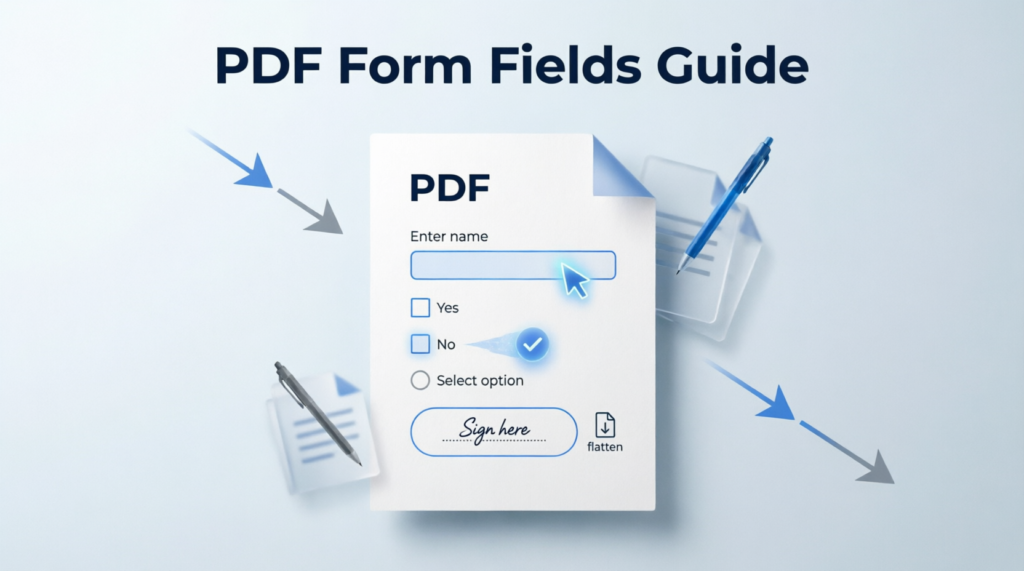
PDF form fields transform static documents into interactive tools that collect information efficiently. Whether you’re creating employee onboarding forms, customer surveys, or legal documents, understanding how to work with form fields is essential for modern document workflows. This guide covers everything from creating interactive fields to filling them accurately and flattening forms to prevent further changes.
Form fields enable users to input data directly into PDFs without printing or scanning. Once completed, you can flatten these forms to convert fillable fields into permanent content, securing the information and reducing file size. Let’s explore each stage of this process.
Understanding PDF Form Field Types
Before creating or filling forms, you need to understand the different field types available in PDF documents. Each serves a specific purpose and provides different user experiences.
Text fields allow users to enter alphanumeric content, from names and addresses to lengthy comments. You can configure these fields to accept single lines or multiple lines of text, and even apply formatting restrictions like number-only or email validation.
Check boxes provide yes/no or on/off options. They’re perfect for consent forms, preference selections, and any scenario requiring binary choices. Users simply click to toggle the state.
Radio buttons offer multiple options where only one selection is permitted. Unlike check boxes, selecting one radio button automatically deselects others in the same group, making them ideal for questions like payment method selection or shipping preferences.
Dropdown menus present a list of predefined options in a compact space. They prevent data entry errors by limiting choices to approved values, useful for country selection, product categories, or standardized responses.
Signature fields enable digital signing capabilities, crucial for contracts, approvals, and legal documents. These fields can capture electronic signatures, initials, or even biometric data depending on the PDF software.
Buttons can trigger actions like submitting forms, resetting fields, or navigating to specific pages. Advanced forms use buttons to create interactive experiences within the PDF itself.
How to Create PDF Form Fields
Creating interactive PDF forms requires specialized software that supports form field insertion. Adobe Acrobat remains the industry standard, but several alternatives offer robust form creation capabilities.
Step 1: Start with your base document. Begin with a completed PDF layout that includes space for where form fields should appear. This might be a converted Word document, a scanned form, or a design created in professional software.
Step 2: Access the form editing tool. In Adobe Acrobat, navigate to Tools > Prepare Form. The software will automatically detect potential form field locations based on document layout, though you’ll likely need to refine these suggestions.
Step 3: Add and configure fields. Click to add fields where users should input data. For each field, right-click to access properties where you can set the field name, tooltip text, appearance, validation rules, and calculation formulas. Give fields descriptive names like “applicant_first_name” rather than generic labels like “text1” for easier data extraction later.
Step 4: Set tab order. Proper tab order ensures users can navigate through your form logically using the Tab key. Poor tab order frustrates users and increases completion time.
Step 5: Test thoroughly. Before distributing your form, test every field, validation rule, and calculation. Fill it out completely as an end user would to identify any issues.
For those without access to premium software, PDFRun’s editing tools provide accessible alternatives for basic form manipulation and field additions.
How to Fill PDF Form Fields
Filling PDF forms has become remarkably straightforward, with most modern PDF readers supporting interactive field completion.
Using desktop software: Open the PDF in any reader that supports forms (Adobe Reader, Foxit Reader, Preview on Mac, or Edge browser). Click into any field to begin typing. Use Tab to move between fields sequentially, or click directly on any field to jump to it.
Using online tools: Platforms like PDFRun allow you to upload, fill, and save forms entirely online without installing software. This approach works perfectly when you’re using a shared computer or need to complete forms quickly from any device.
Auto-fill capabilities: Many PDF readers can store commonly entered information like your name, address, and contact details. Enable auto-fill to speed up repetitive form completion.
Saving progress: Most interactive PDFs allow you to save your partially completed form and return later. Use File > Save As to preserve your entered data.
Best practices for filling forms: Review field labels and instructions carefully before entering data. Use spell check when available. For signature fields, ensure your digital signature is clearly legible. Double-check critical information like dates, amounts, and identification numbers before final submission.
What Does Flattening a PDF Form Mean?
Flattening a PDF form converts all interactive fields into static content, permanently embedding the entered data into the document. The form becomes a standard PDF without editable fields.
This process serves several important purposes. Security is paramount—flattening prevents recipients from altering submitted information. Once flattened, the data cannot be changed without obvious evidence of manipulation.
Compatibility improves significantly with flattened forms. Some older PDF readers struggle with interactive fields, displaying them incorrectly or not at all. Flattened PDFs display consistently across all viewers.
File size reduction often occurs during flattening. Interactive form fields and their associated JavaScript can add considerable overhead. Flattened forms typically become smaller and faster to load.
Archival purposes benefit from flattening. Long-term document storage systems prefer standardized, static formats over interactive elements that might not render correctly decades later.
How to Flatten PDF Forms
Several methods exist for flattening PDF forms, ranging from simple to sophisticated.
Method 1: Print to PDF. The simplest approach works in any PDF viewer. Open your completed form, select File > Print, then choose “Print to PDF” or “Save as PDF” as your printer. This creates a new, flattened version while preserving the original. This method also removes any form field structures.
Method 2: Use Adobe Acrobat. Open the form in Acrobat, go to File > Print, and select Adobe PDF as the printer. Alternatively, use File > Save As Other > Reduced Size PDF, which includes flattening options.
Method 3: Online flattening tools. Services like PDFRun offer dedicated flattening features that process your form in seconds. Upload your completed form, click flatten, and download the secured result. These tools are particularly useful when you don’t have desktop software available.
Method 4: Command-line tools. For batch processing multiple forms, tools like Ghostscript or QPDF can flatten forms programmatically. This approach suits IT departments processing high volumes of submitted forms.
Before flattening: Always verify that all data entry is complete and accurate. Flattening is irreversible—you cannot unflatten a form to make corrections. Save an unflattened backup copy if you might need to make changes later.
Common Issues and Troubleshooting
Fields not appearing: If form fields don’t display or aren’t clickable, your PDF reader may not support interactive forms. Update to the latest version or try a different viewer.
Data not saving: Some PDFs have security restrictions preventing data saving. Contact the form creator to request an updated version with proper save permissions, or use PDFRun’s compression tool which can sometimes resolve permission issues.
Validation errors: If fields reject your input, check formatting requirements. Date fields may require specific formats (MM/DD/YYYY vs. DD/MM/YYYY), and number fields might not accept letters or special characters.
Incomplete flattening: Occasionally, some form elements resist standard flattening methods. In these cases, opening the PDF in multiple programs and using print-to-PDF often succeeds where direct flattening fails.
Lost formatting: Complex forms with custom fonts or special layouts sometimes lose formatting during flattening. Preview the flattened result carefully before distributing it.
Frequently Asked Questions
Can I unflatten a PDF form after it’s been flattened?
No, flattening is a permanent, one-way process. Once form fields are converted to static content, they cannot be restored to interactive fields. The data becomes part of the page content like any text or image. Always keep an unflattened backup copy if you anticipate needing to make future edits. Some OCR tools can detect text in flattened forms and recreate fields, but this process is imperfect and requires manual correction.
Do I need special software to fill PDF forms?
No, most modern PDF viewers support basic form filling, including free options like Adobe Reader, browser-based viewers in Chrome and Edge, and Preview on Mac. For more advanced features like digital signatures or form creation, you might need premium software. However, online platforms like PDFRun provide comprehensive form filling and signing capabilities without requiring any software installation, making them accessible from any device with internet access.
What’s the difference between a fillable PDF and a regular PDF?
A fillable PDF contains interactive form fields that allow users to click and type data directly into designated areas. Regular PDFs are static documents without interactive elements—you can only read them, not input data. Fillable PDFs include underlying form field objects with properties like field names, data types, and validation rules. Regular PDFs display all content as fixed text and images. You can convert regular PDFs to fillable forms by adding form fields, or convert fillable PDFs to regular PDFs by flattening them.
Conclusion
Mastering PDF form fields—from creation through filling to flattening—empowers you to handle document workflows efficiently and professionally. Creating well-designed forms improves data collection quality and user experience. Filling forms accurately ensures information integrity. Flattening completed forms secures data against tampering while improving compatibility and archival stability.
Whether you’re processing a single employment application or managing enterprise-level document workflows, these skills remain essential. Online tools like PDFRun make professional PDF form management accessible to everyone, regardless of technical expertise or budget constraints.
Start with simple forms to build confidence, then progress to more complex interactive documents. With practice, you’ll handle PDF forms as naturally as any other business task, streamlining processes and reducing paper dependence across your organization.